Table of Contents
Ever dreamed of converting a photo into a video without some difficult editing software? AI image-to-video tools have made this possible by leveraging artificial intelligence to animate still images, add camera movements, and bring motion to various objects or people in a scene.
These tools can be used by anyone from a blogger to a content creator or even a student or a small business owner to turn images such as product photos, illustrations, and digital artwork into short video clips.
You’ll find out how to use AI to convert an image into a video, how to write effective prompts, what features are at your disposal, and how to enhance your videos without wasting any money.
What Is an AI Image-to-Video Generator?
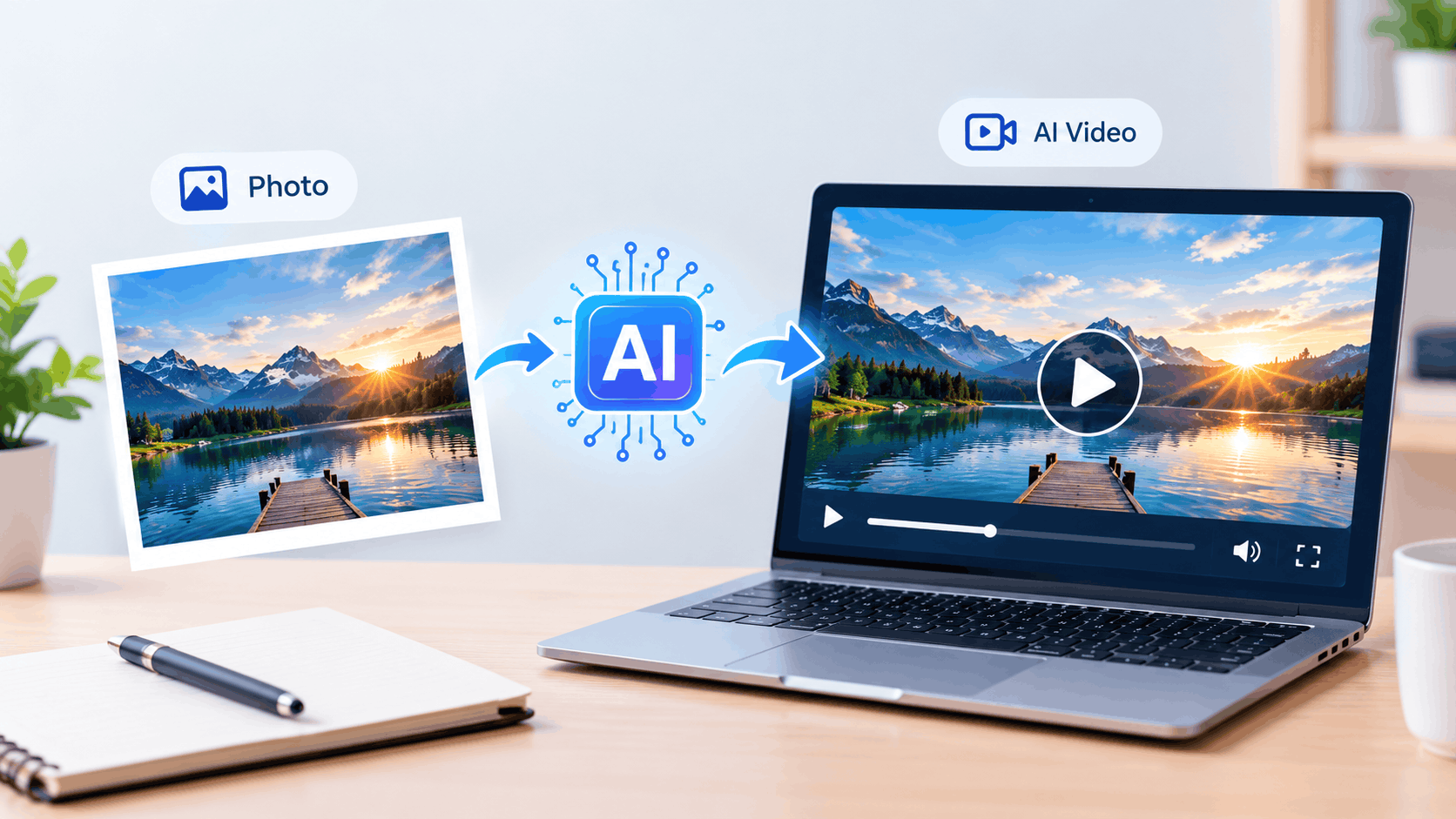
An AI image-to-video generator refers to a tool that converts an image into a video. You upload a photo or an illustration, describe the motion you want, and let AI create a motion clip.
You might, for instance, upload a picture of a mountain lake and instruct the AI to produce a soft sway of the water, a gentle drift of clouds, and a panning camera shot that moves slowly.
You can adjust camera movements, subject movements, visual style, video length, and aspect ratio for some tools.
Image-to-video generation can be useful for:
- Creating short videos for social media.
- Online retailers use product photos that are animated.
- Converting illustrative scenes into moving scenes.
- Making visual content for blog posts.
- Generating innovative ideas for advertisements.
- Presenting motion of photos.
The outcome will vary according to the AI model, prompt, and settings you select, as well as the original photograph.
Get instructions on using AI to convert an image into a video.
But you don’t have to be an expert videographer to jump in. Here are the steps to make the first AI-generated video.
The first step is to select a good image.
Use a clear, good-quality photo. Your source image is a critical piece of information the AI needs to understand what’s happening, the composition, the lighting, and the background.
- Select an image that has a clearly recognizable subject.
- Don’t submit poorly focused or very grainy photos.
- Use the right type of composition that allows for the desired movement.
- Make sure the image has the correct orientation for your video.
- Use images that you own or have permission to upload and animate.
For instance, a picture of a man walking in a park might be appropriate for a gentle movement, or a photo of a product might be good for a slow-motion shot.
An AI image generator can also be used to generate an image before animation.
Step 2: Select an AI Video Tool
Select an image-to-video generator that caters to your particular content. Some possibilities to consider are:
- Adobe Firefly (https://firefly.adobe.com/): Dive into AI creative tools and video-generation workflows.
- Runway (https://runwayml.com/): Discover video generation and creative editing with AI.
- Kling AI (https://klingai.com/): Discover video generation capabilities with AI such as image-based workflows.
- Dreamina (https://dreamina.capcut.com/): Get to know the tools for AI image generation and video editing.
The following are examples to explore, not a ranking system as a result of practical testing. Some features, regions, credit allowances, export quality, and free-plan restrictions may be modified. Review the current conditions or terms of each provider before beginning a project.
If you are in particular need of a free choice, please see if it offers free credits that will be useful, a subscription, a watermark, or restrictions on downloads.
Step 3: Upload Your Image
In the selected tool, search for a function like Image to Video, Image-to-Video Generator, or Animate Image.
Click on the picture you want to upload and wait for the picture to appear in the workspace. There are some tools that enable you to pick a first frame, select a model, change the aspect ratio, or set other settings. It varies depending on the platform.
Check the preview before generating the clip to ensure that it is displaying the correct picture and that the subject is in the right place.
Step 4: Compose a concise Motion prompt
You specify the direction of movement of the image in the prompt. Rather than listing all of the elements that are already present in the photograph, focus on the elements you wish to bring to them: the movement, camera behaviour, the atmosphere and the pacing.
Example 1: Nature scene
Bring to life the stationary elements with gentle ripples in the lake, slow movement of the clouds, and softly shifting leaves in the trees. Slow camera motion, natural lighting, and realistic movement. Maintain the same composition.
Example 2: Product photography
Make a camera orbit around the product that is smooth and slow. Employ gentle studio lighting, gentle reflections, and a clean background. Use the same form, colour, and size for the product throughout the clip.
Example 3: Portrait animation
Include natural movement with the subject; the eyes should blink slightly and the hair should move slightly. Try to keep the face shape uniform, avoid harsh lighting, and avoid exaggerated facial expressions or camera movements.
These prompts are not a sure thing for instruction; they are a starting point. Each AI model has different variations, so try variations of prompts to see which ones work.
In Step 5, the Video Settings can be adjusted.
Check the settings available before creating a clip.
- Consider vertical video for many of your short-form social posts and horizontal video for your traditional widescreen presentations. Some social feeds might be better suited to a square format.
- Time: Watch a short video. Longer videos could use up more credits and may add more motion inconsistencies.
- Resolution: Select the highest resolution you can afford and can plan for.
- Motion strength: If the control is present, use moderate movement. Can cause faces, hands, product shapes, or background details to be distorted when moving too much.
- Camera movement: If available, choose a simple camera move like a zoom, pan, or orbit.
Not all settings need to be used to their utmost limits. A judicious, uniform transition can be more effective than a clip with too much action going on.
Step 6: Create and Edit the Video
Tap the Generate button, and let this tool work on your image. Once it has finished playing, check the video thoroughly, rather than downloading it right away.
Check for:
- Twisted or misshapen body parts/faces.
- Modifications to product forms.
- Flickering or inconsistent backgrounds.
- Unexpected movements.
- Unnatural camera motion.
- Restrictions on exportation or watermarks.
If things don’t look right, make your prompt easier, less movement or use a different source image. If a product changes shape during animation, for instance, try a more subtle camera move and a prompt that focuses on a consistent shape of the product.
Step 7: Download and Optimize the Video
Once done, download it using the “Download” option provided. If you want to share the video on your website or social media, make sure to review the terms of the usage rights, particularly if you are going to be using it for any commercial purpose.
In the case of social media, ensure that the aspect ratio and file size are compatible with the platform. If uploading large video files to the blog means that the page will be slow, embed the video via a suitable hosting service.
Before uploading images of yourself, personal, confidential or sensitive images, always read the provider’s privacy policy.
For those looking to improve their AI image-to-video results, here are some helpful tips.
Making a good video isn’t as simple as picking a good tool. Both your source picture and your prompt and your expectations are important.
Use One Main Motion
Give the AI as few instructions as possible on how to move. In other words, don’t demand a spinning camera, moving subject, changing weather, and multiple scene transitions at the same time. For instance, don’t say that you want a slow camera push and a gentle background movement instead of a spinning camera, a moving subject, changing weather, and multiple scene cuts all at once.
Begin with a high-quality image.
A clear, well-focused photo will provide the AI with a more solid foundation. The blurriness of the detail and complicated background can sometimes cause distortions to the image.
Be specific with your prompts.
Include descriptive words that provide a clear indication of what the action is. Words like “slow camera pan” or “gentle movement” or “consistent lighting” can convey your intent more clearly than “make it cinematic.
Generate Short Clips First
Short clips are easier to review and typically aren’t as resource-intensive. If the tool supports longer sequences, then try to find a combination of prompt and image that produces a longer sequence.
Compare the Results
If possible, use the same image and a comparable prompt for two tools. Consider the quality of the motion, consistency, export options, and the level of editing needed. Remember that more features do not necessarily mean better. The one that is suitable for your project.
But what if the Free AI Image-to-Video Tools aren’t free?
Certain AI video platforms provide complimentary credits, trial generations, or limited access to certain features. Others require a subscription to use further or specific export features. The “free” part doesn’t necessarily mean that you can create videos for free.
Here are the five things to consider when selecting a tool:
- How many generations can be made? (credit allowance)
- Are credits renewed, or is there a trial period?
- Watermarks: Is there a watermark on the exported video?
- Quality of download: Is there a limit on resolution or time?
- Intended uses: Do you plan on using it for your own personal or business purposes?
Some of these limitations may apply and may be subject to change, so please read the official pricing and usage terms, not an older tutorial!
The most helpful tool for the beginner is the one that will allow him to complete the desired task with a fair degree of satisfaction and with minimal additional editing.
A list of common issues and solutions for them.
The video appears to be warped.
Use a better source image and minimize the number of requested actions. Do not use prompts that call for several objects to move in various directions.
This page is updated every twenty-four hours. This page will change every 24 hours.
Remember to use a prompt that encourages consistency, and don’t use complex transformations. It will still not be easy to maintain facial details or product geometry in some models.
The captured video is not real-time.
Use gentler movement and clearly describe a basic camera movement. Making another copy can be helpful, but will not necessarily yield the same results.
While the tool is requesting payment.
Verify that the free allowance has been used up or, if selected, see if the model requires paid credits. Please check the latest pricing before signing up.
The video has a watermark
Review restrictions in export policy and plan. A watermark does not simply remove – do not assume it is legal or won’t impact quality; use an export option that is allowed by the provider.
Frequently Asked Questions
How to make a video from a picture for free?
Yes, some AI tools provide free generations or AI trial credits. Some of the features can be different; the number of clips, watermarks, and the restriction on download depends on the provider.
Do you need some experience in video editing?
No. There are a number of image-to-video tools available, which are designed for beginners. You are usually required to upload a picture, explain what the motion is, choose from a set of parameters, and create a clip.
Can AI bring a normal photographic image to life?
Yes. Landscapes, portraits, product photos, and pictures that can also be animated include illustrations. Some results are better, more realistic, than others.
Is it legal to use AI videos for business?
This depends on the provider’s conditions, model, uploaded content, and rights and restrictions. Before exploiting a video on an advertisement or client project, check the relevant terms.
How to get a more realistic look from an AI-generated video?
Have a clear picture in mind, have a simple motion cue, don’t move too much, and watch the clip for distortion. It will take a few tries to get the desired result.
Final Thoughts
For many, turning a photo into an AI video is a simple method for generating captivating video material without the need to master an intricate editing process.
Be sure to use a good picture, pick an appropriate tool, explain the motion precisely, and check the results before publishing. Consider free-plan restrictions, export quality, privacy and usage rights to ensure your selection of a tool that meets your needs.
Try out basic suggestions initially and enhance them over time. You can create a repeatable process to make short videos for blog posts, social media, presentations, and creative projects with practice.
For more articles visit searchbooste